I love iTerm2. Compared to the default Terminal app in MacOS, iTerm2 gives you super powers. I would like to share one particular feature that I find to be most useful: Triggers.
Why do you need it?
Simple: when there is a prompt appearing on your screen, you can trigger an action.
For instance, you can configure iTerm2 to trigger password manager every time when there is a string "Password: " appearing on a line.
I am going to walk you through the steps to configure one particular use case: popping up MacOS Keychain to auto fill the passwords.
Configuring Triggers
- There are two ways you can go to Triggers screen.
a. Easiest is to select some text that you would like to use as trigger and right click. You will see an option to "Add Trigger".
b. Alternative is to navigate to iTerm2 -> Preferences -> Profiles -> [Profile name] -> Advanced. You will see the "Triggers" section. Click on "Edit" button in that section.
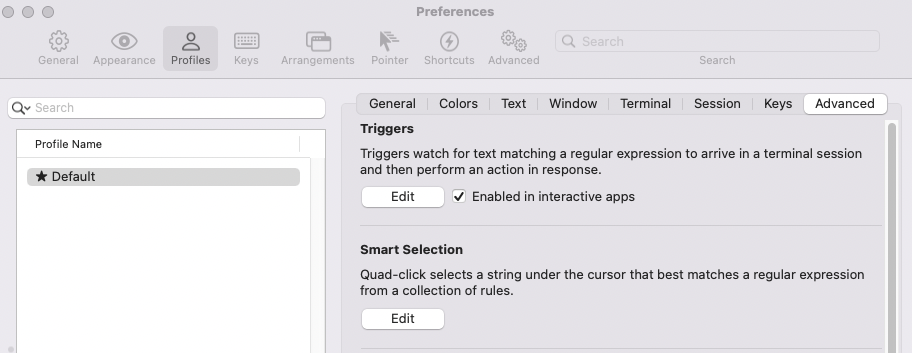
- Triggers screen will look like this.
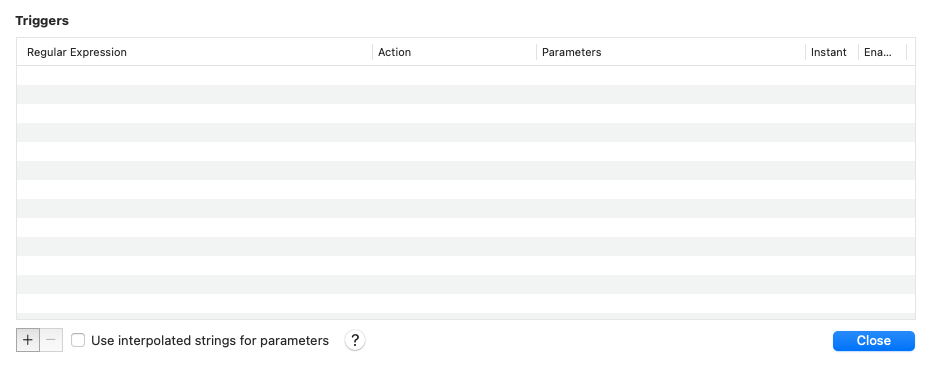
- Once you have the Edit Triggers open, you can add a regulr expression that should be matched. And an action that should be triggerred. For instance, you can add the regular expression to be
^Password :and the action to be "Open Password Manager..."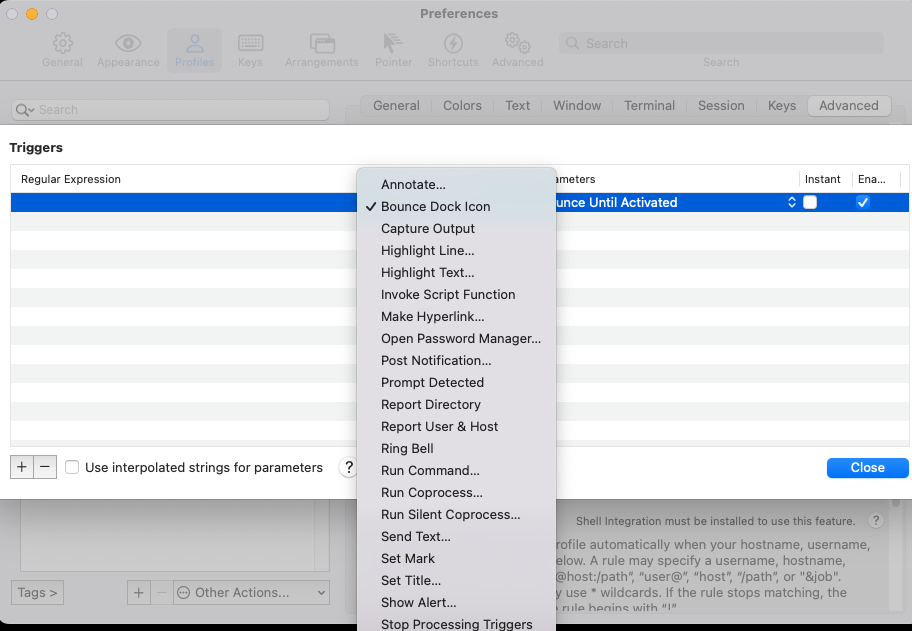
Thats it. It is as simple as that. Give it a try and let me know what do you think.